Flow Builder
The Flow Builder is a visual node-based editor that lets you design the response logic of your mock agent using a drag-and-drop interface.
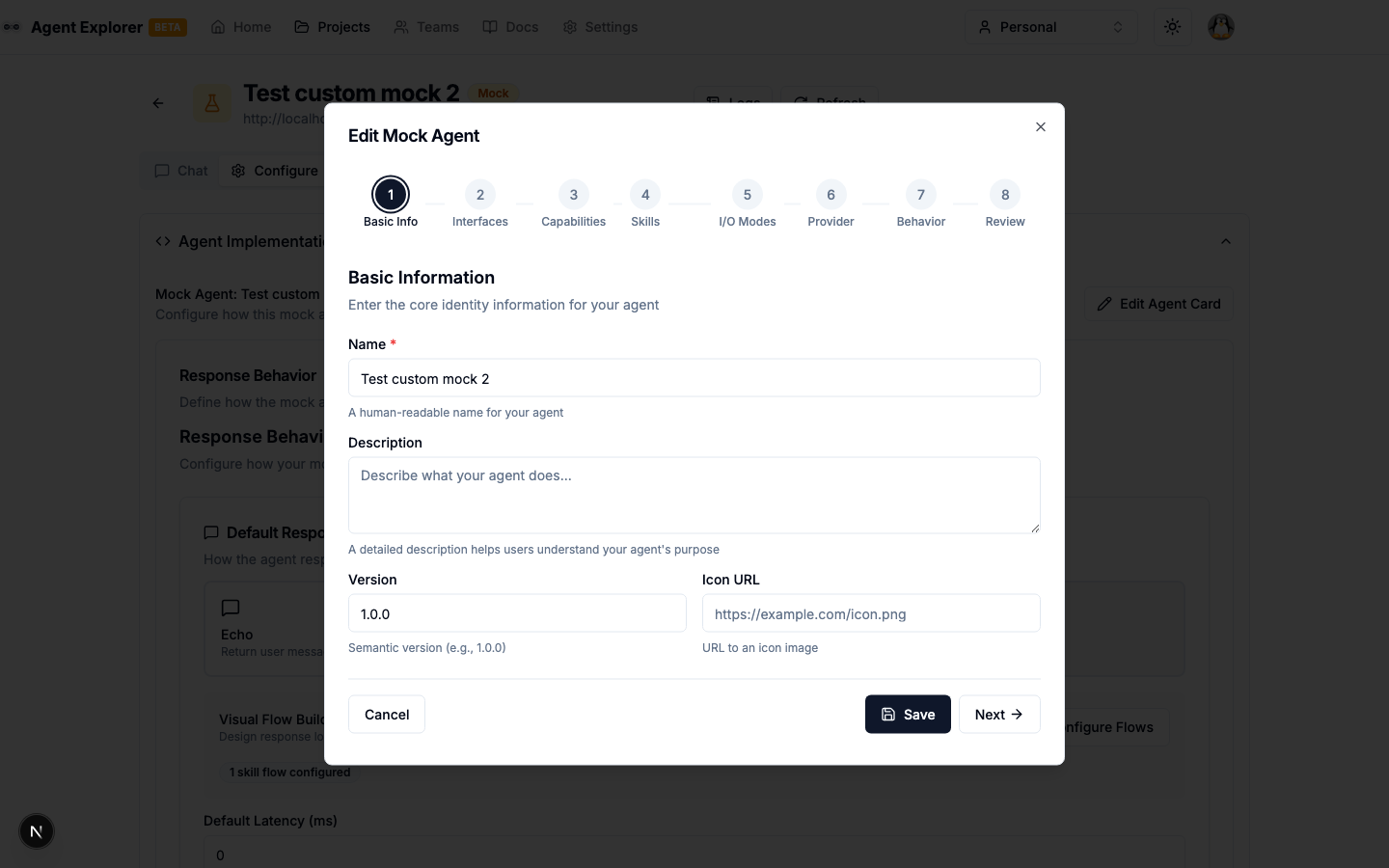
Opening the Flow Builder
There are two equivalent entry points on a mock agent's detail page:
- The Flows tab opens the response editor. Choose Edit in Flow Builder to open the selected response in the Flow Builder, with its existing graph loaded.
- On the Configure tab, the Skill Routing section in the sidebar opens the same picker plus the per-skill flow editors, alongside the legacy Edit AgentCard wizard's Response Behaviour step.
Either path opens the Flow Builder as a full-screen dialog.
Interface Overview
The Flow Builder has three panels accessible via the left icon toolbar:
| Icon | Panel | Description |
|---|---|---|
| Shapes | Nodes | Drag node types onto the canvas |
| Settings | Properties | Configure the selected node |
| Variable | Variables | Manage flow-scoped variables |
Panels slide in/out — click the icon to toggle.
Node Types
Nodes are colour-coded by category and can be dragged from the Nodes panel onto the canvas.
Flow Control (green)
| Node | Description |
|---|---|
| Start | Entry point — every flow begins here |
| End | Terminates the flow and sets the final task state (completed, failed, canceled, input-required) |
Logic (amber)
| Node | Description |
|---|---|
| If / Else | Branches flow based on a condition |
Data (violet)
| Node | Description |
|---|---|
| Set Variable | Creates or updates a flow variable |
Response (blue)
| Node | Description |
|---|---|
| Set Payload | Builds the response content sent back to the caller |
| Error | Returns a JSON-RPC error response |
Debug (gray)
| Node | Description |
|---|---|
| Log | Logs a message to the server console for debugging |
Coming soon: For Loop, Transform, HTTP Request, LLM Call
Connecting Nodes
Hover near any edge of a node — a connection dot follows your cursor around the node's border. Drag from the border and drop anywhere on the destination node; the destination highlights when the connection will land. Edges attach to the nearest point on each node automatically and re-route as you move nodes. To fine-tune, select an edge and drag its endpoint dots to pin the connection point anywhere on the node's perimeter (double-click an endpoint to reset it to automatic).
Branching nodes work per branch: on an If/Else node drag from the true or false label; on a Switch node drag from any case row (or the default row) straight to the destination node.
If / Else Conditions
Configure conditions in the Properties panel:
| Setting | Description |
|---|---|
| Left Operand | Variable reference or literal. Use {{input}} for the incoming message text |
| Operator | equals, not_equals, contains, not_contains, starts_with, ends_with, matches_regex, greater_than, less_than, is_empty, is_not_empty |
| Right Operand | Value to compare against (not needed for is_empty/is_not_empty) |
Template Variables
Use {{variableName}} syntax in node fields to reference variables:
| Variable | Description |
|---|---|
{{input}} | The text content of the incoming message |
{{messageId}} | The incoming message UUID |
{{taskId}} | The current task ID |
| Any custom variable | Variables defined by Set Variable nodes |
Set Payload Node
The Set Payload node defines the content of the response. Add multiple parts:
| Part Type | Description |
|---|---|
| text | Plain text content (supports {{template}} syntax) |
| data | JSON data |
| file | File with MIME type |
Data parts are parsed as JSON (after {{template}} interpolation) and sent as A2A DataParts in the response artifact and agent message. If the content is not valid JSON, it is sent as a text part instead. In the chat view, DataParts are rendered as a labeled, syntax-highlighted JSON block so they stand out from text parts.
Skill Tabs & Routing
When opened from the agent response editor, Flow Builder shows Shared response and a tab for each skill, with the current response named in the heading. Skills with custom responses have independent flow graphs. Skills marked Uses shared response inherit the shared graph; viewing them does not create a custom flow, while editing creates one for that skill only. Switch tabs to edit another response, or choose Back to response to continue editing the same skill in the simple editor.
Skill Routing
With multiple skills, configure how incoming messages are routed to the correct skill flow:
| Mode | Description |
|---|---|
| Manual | Client must specify the skill ID in the request |
| Pattern | Regex patterns matched against message text; configurable priority |
| LLM | Use a configured LLM to semantically route to the most relevant skill |
For LLM routing, select a configured LLM from Settings and optionally provide a custom system prompt.
Validation
The toolbar shows a real-time validation badge:
- Valid (green) — Flow is complete and can be saved
- N error(s) (red) — Issues that must be resolved before saving
Common errors:
- No Start node
- Dangling output handles (connected to nothing)
- End node missing (no terminal node)
Saving
Click Save (or Save & Close) to persist the flow. Unsaved changes show an Unsaved badge. Closing with unsaved changes prompts a confirmation dialog.