Settings & LLM Configs
The Settings page (/settings) manages global configuration for LLM integrations and API keys.
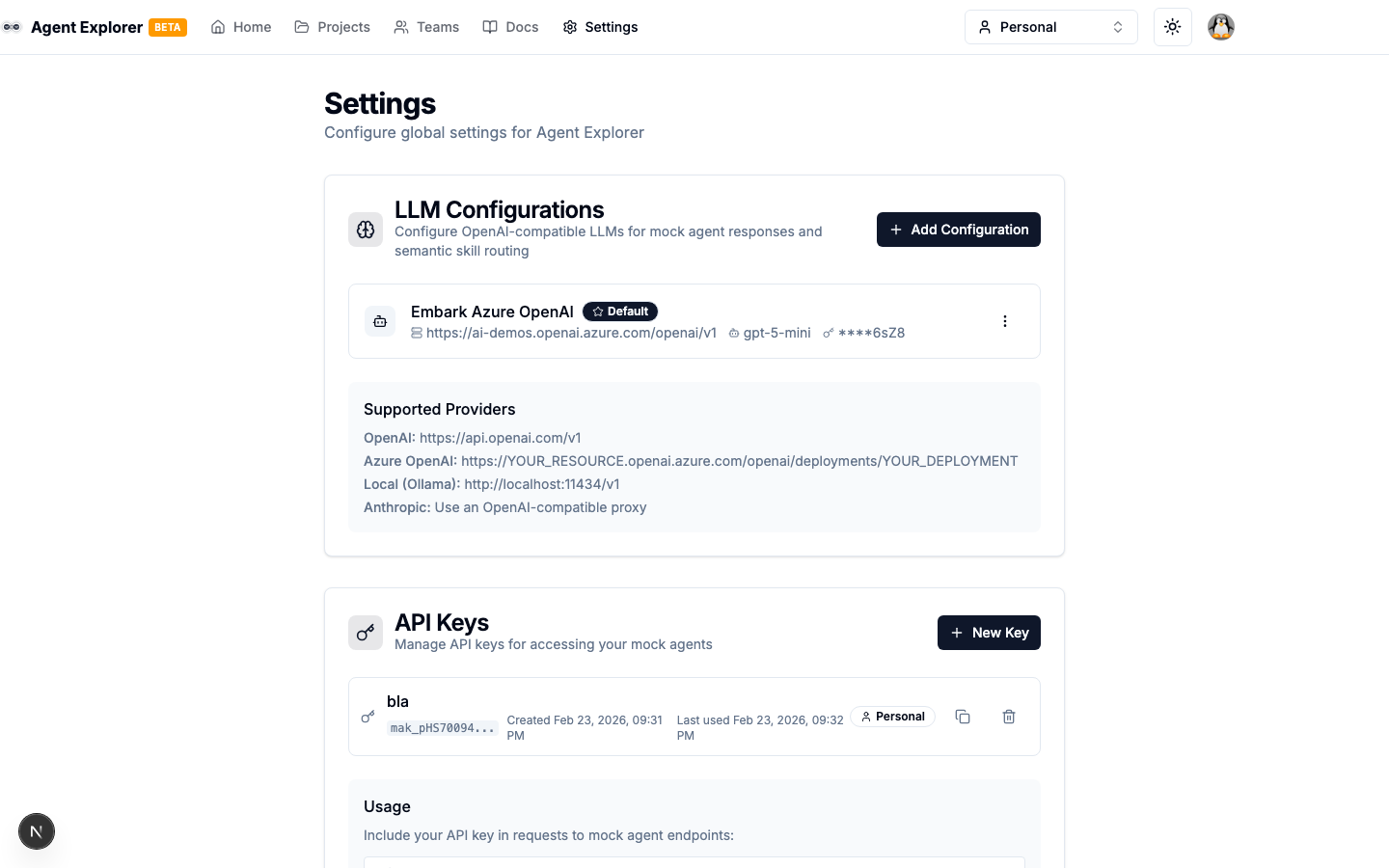
LLM Configurations
LLM Configurations connect Agent Explorer to OpenAI-compatible language models. They are used by:
- LLM Skill Routing in Mock Agents (semantic routing via AI)
- Future LLM Call node in the Flow Builder
Adding a Configuration
- Go to Settings
- Under LLM Configurations, click Add Configuration
- Fill in:
| Field | Description |
|---|---|
| Name | Friendly label (e.g., "OpenAI GPT-4o") |
| API Base URL | The OpenAI-compatible API endpoint |
| API Key | Your API key (encrypted before storage) |
| Model | The model to use (e.g., gpt-4o-mini) |
| Set as Default | Mark as the default for new routing configs |
- Click Test Connection to verify the key and model before saving
- Click Create
Supported Providers
| Provider | Base URL |
|---|---|
| OpenAI | https://api.openai.com/v1 |
| Azure OpenAI | https://YOUR_RESOURCE.openai.azure.com/openai/deployments/YOUR_DEPLOYMENT |
| Ollama (local) | http://localhost:11434/v1 |
| Anthropic | Use an OpenAI-compatible proxy |
Security
API keys are encrypted with AES-256-GCM before being stored in the database. Only a truncated preview (sk-...xxxx) is shown in the UI.
Default Configuration
Mark one configuration as Default. This is used automatically when:
- A mock agent's LLM routing is set to use global config
- Any feature that needs an LLM but hasn't specified a config
API Keys
API Keys secure your custom mock agent endpoints. Only requests bearing a valid API key can invoke the mock agent.
Creating an API Key
- In Settings → API Keys, click Create API Key
- Give it a name and optionally assign it to a team
- Copy the generated key — it is shown only once
Using an API Key
Include it as a Bearer token in requests to your mock agent:
Authorization: Bearer a2a_your_api_key_here
Revoking an API Key
Click the delete icon next to any key to revoke it immediately. Any requests using the revoked key will return 401 Unauthorized.